Using Replay (Video)
This guide explains how to use the Replay (Video Recording) feature on an iOS device.
The Replay feature is not available on devices running iOS versions earlier than 17.
Update the DeployGate Client App to the Latest Version
Please update the DeployGate client app to the latest version from the Apple App Store.
For instructions on how to install the client app, please refer to this page.
Using the Replay Feature in the DeployGate Client App
1. Install the Target App
Scan the QR code for the target revision and install the app. For installation instructions, please refer to this page.

2. Start a Replay Capture
- Tap the
Record Screenbutton to start a replay capture.
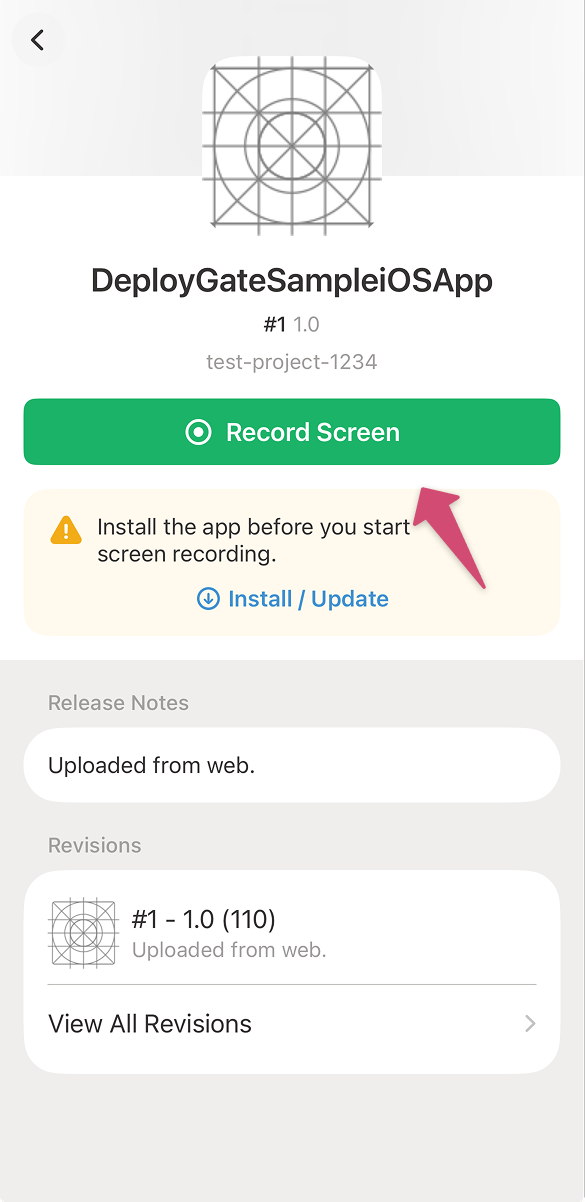
- Select the app you want to record and tap
Start Broadcast.
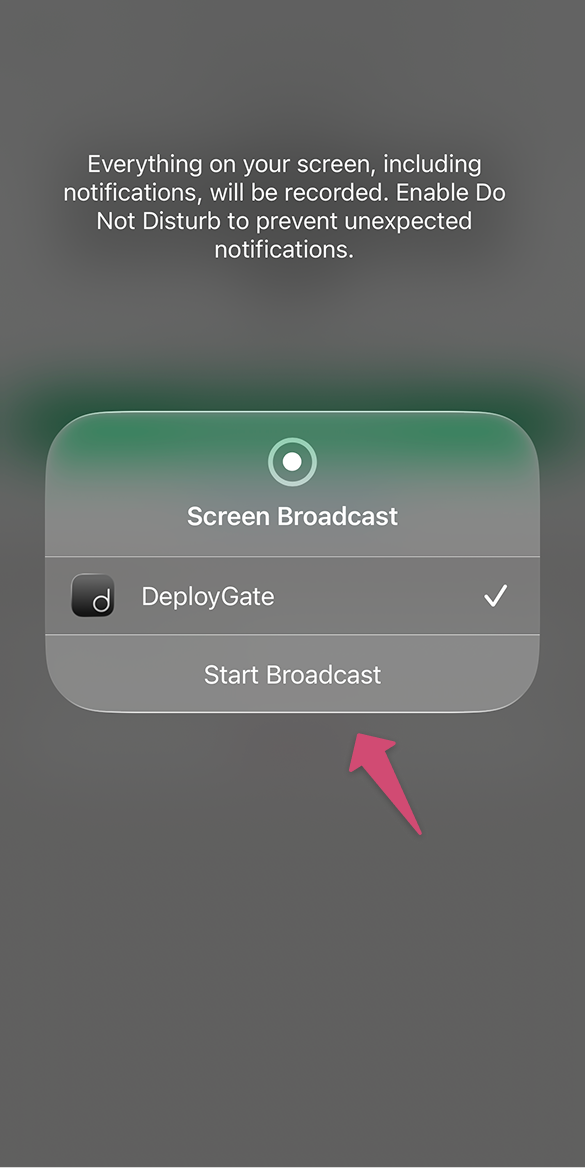
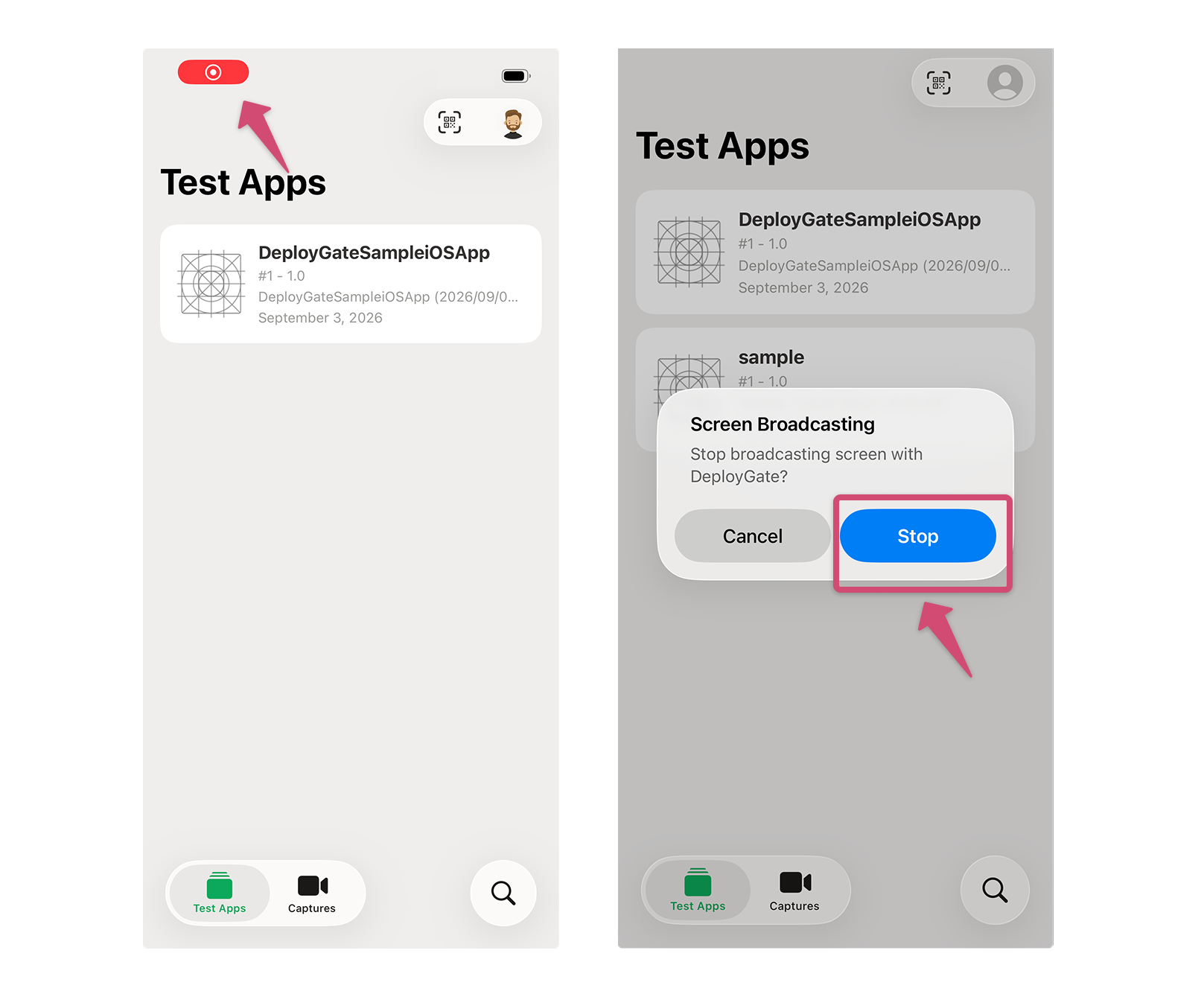
3. Stop, Review, and Save a Replay Capture
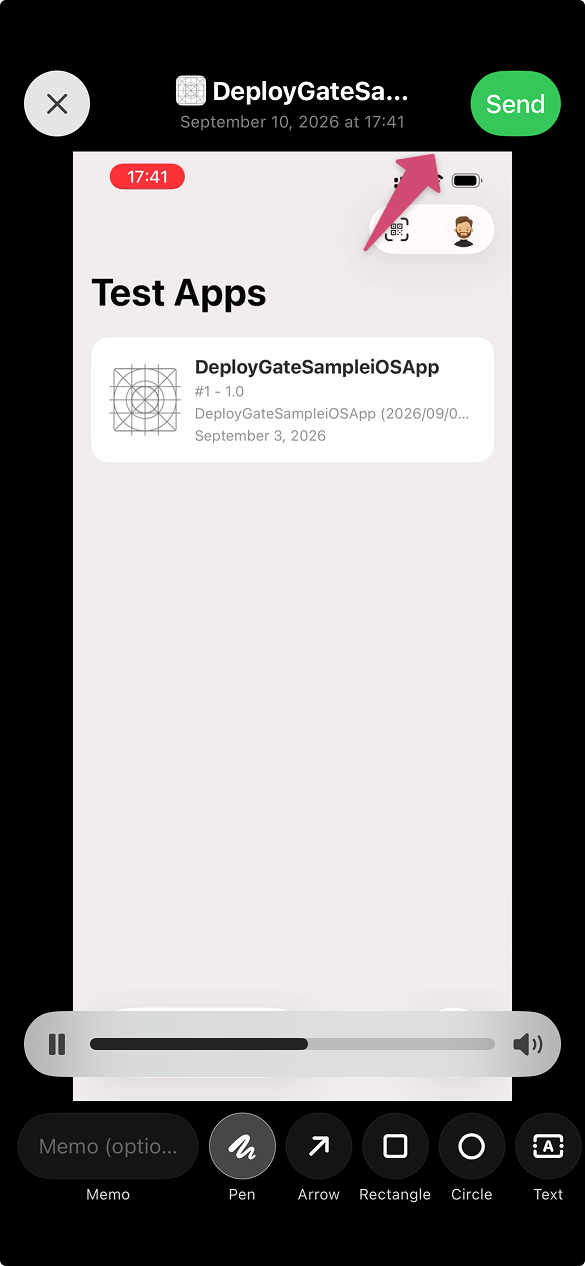
Tap the red indicator in the upper-left corner of the screen to stop the screen recording.
Open the Captures tab in the DeployGate client app to view a list of recorded replays.
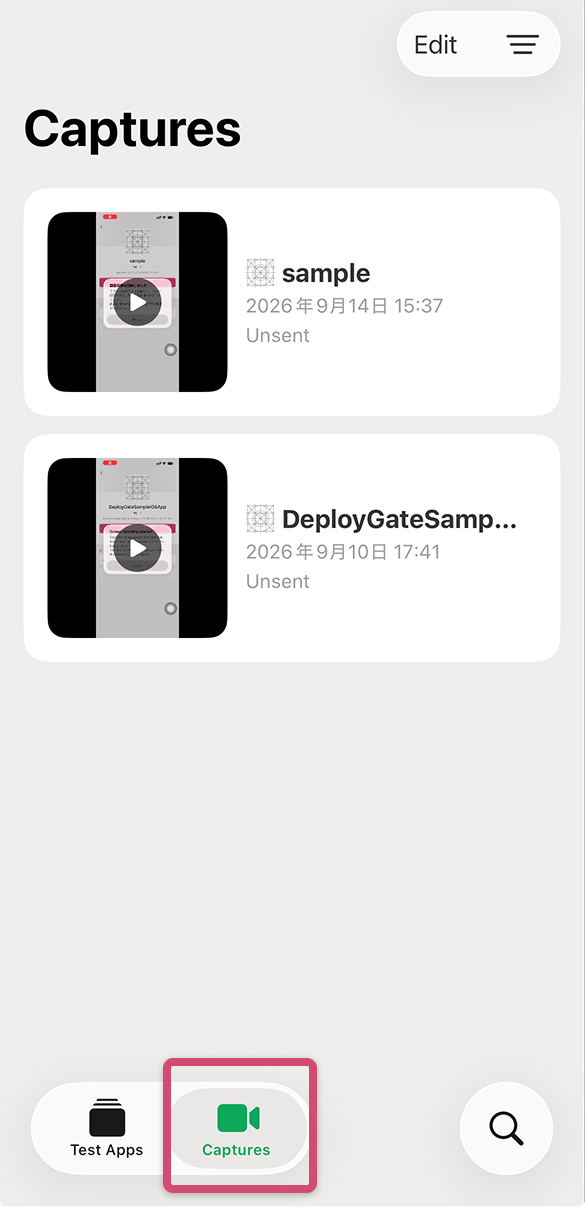
Tap the replay you want to save, then tap Send to save it.
If you encounter a bug, stop the screen recording immediately. This allows you to review the actions leading up to the error.
Viewing Saved Replays
For instructions on how to view saved replays, please refer to this page.