Install Distributed Appds on Devices Running iOS Version Earlier Than 17
This guide explains how to install an app under development on a device running an iOS version earlier than 17.
If you are using a device running iOS 17 or later, please refer to this page.
Installing DeployGate for iOS
You must install DeployGate for iOS if you want to install apps through member distribution or install apps shared via link distribution while logged in as a member.
For details on each distribution method, please refer to the Comparison Table of Member Distribution and Link Distribution.
Follow the steps below to install DeployGate for iOS.
-
Refer to Signing Up from a Device Running an iOS Version Earlier Than 17 and sign up for the workspace you have been invited to.
-
When the login screen appears, log in using the email address and password you registered when creating your account.
You can also access the login screen by opening this page on your iOS device.

- Tap the
Install DeployGatebutton and follow the on-screen instructions to install DeployGate. If you are prompted to enter a passcode during installation, enter the passcode you normally use to unlock your iPhone or iPad. Please note that this is not your DeployGate account password.

- Once the installation is complete, tap
Doneand return to DeployGate. A list of apps will appear.

- Return to your device's Home Screen. You will see the DeployGate icon. From now on, you can launch DeployGate by tapping this icon.

Installing a Distributed App
Installing an App Distributed via Link Distribution
If the DeployGate icon has not been added to your Home Screen, please complete this step first.
The app will be shared with you via a distribution page URL or QR code.
You can access only the single revision specified by the developer from the distribution page.
If you are unsure whether the app was shared through link distribution, please check with the developer. For details on the differences between the two distribution methods, please refer to this page.
- Open the shared link on your device.
You can also access the distribution page using a QR code. When you scan the QR code with your device, the distribution page will open in Safari.
If the page opens in a browser other than Safari, instructions on how to open it in Safari will appear. Follow the instructions on the page to copy the URL and open it in Safari.
-
Tap
Join Test.
-
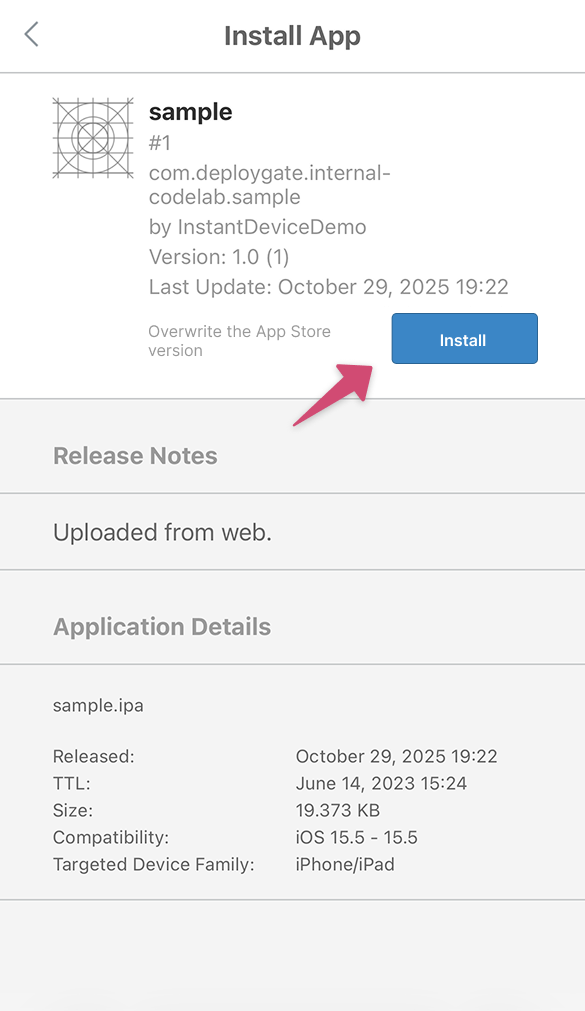
The following screen will appear. Tap
Install.
-
A message saying
"deploygate.com" would like to install [App Name]will appear. TapInstall.
-
When the message
Installation has started. Please check your Home Screen.appears, go to your device's Home Screen. The installed app will appear on the Home Screen.
Installing an App Distributed via Member Distribution
If the DeployGate icon has not been added to your Home Screen, please complete this step first.
You can view a list of apps under development that are available for installation in the DeployGate client app.
You can install any revision of an app you have been granted access to, allowing you to compare different revisions and isolate errors.
If you are unsure whether the app was shared through member distribution, please check with the developer. For details on the differences between the two distribution methods, please refer to this page.
- Tap the DeployGate icon on your iOS device's Home Screen.
- A list of apps available for installation will appear. Tap the app you want to install.
- Tap the
Installbutton to start installing the selected app.