Communicate with Developers through the Android Client App
This guide explains how to communicate with developers of apps under development through the DeployGate client app.
Adding Comments to a Distribution Page
You can add comments to apps shared via link distribution directly from the DeployGate client app. For instructions on how to install an app shared via link distribution, please refer to this page.
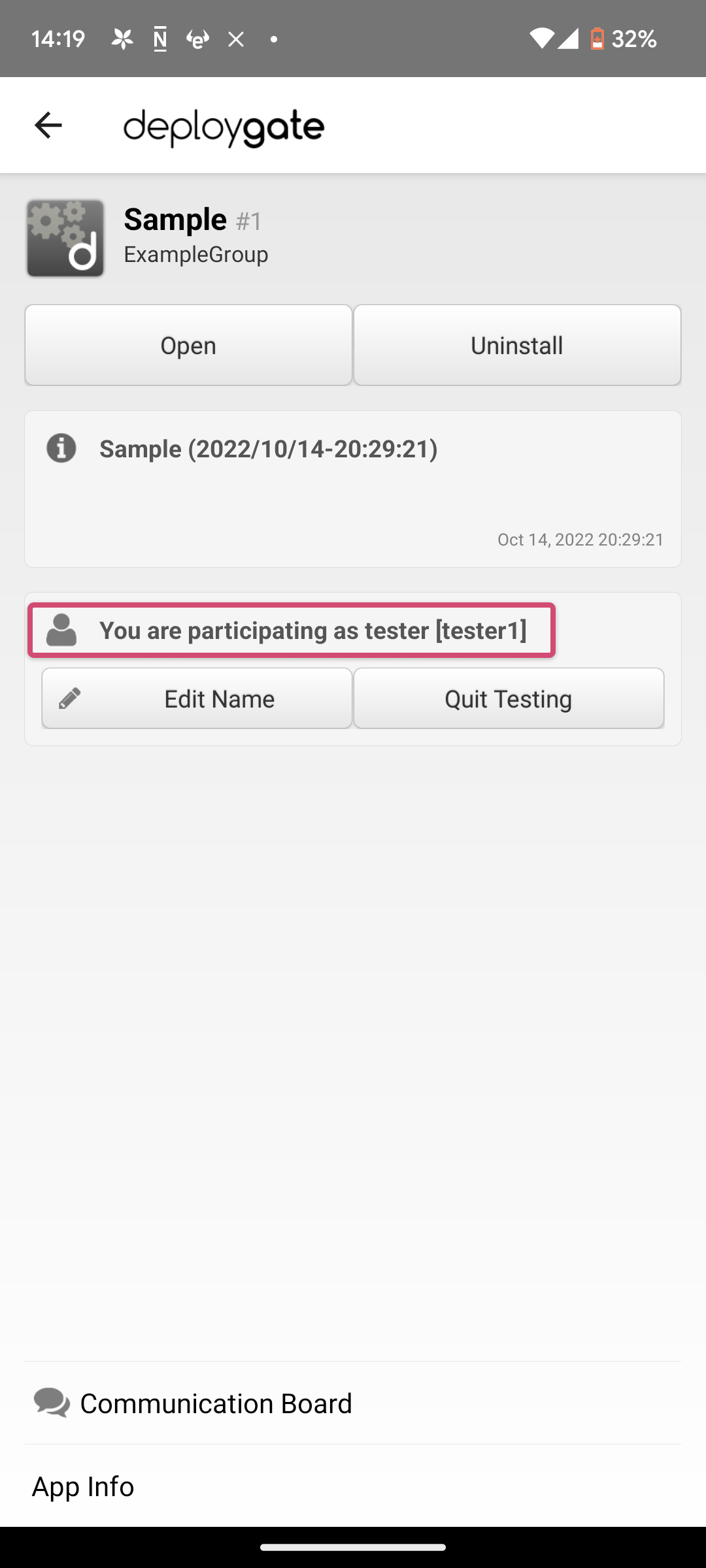
- Open the details screen of the distributed app.
- Tap
Communication Boardat the bottom of the screen. - Enter your comment directly on the screen that appears. You can also upload screenshots or other files if needed.
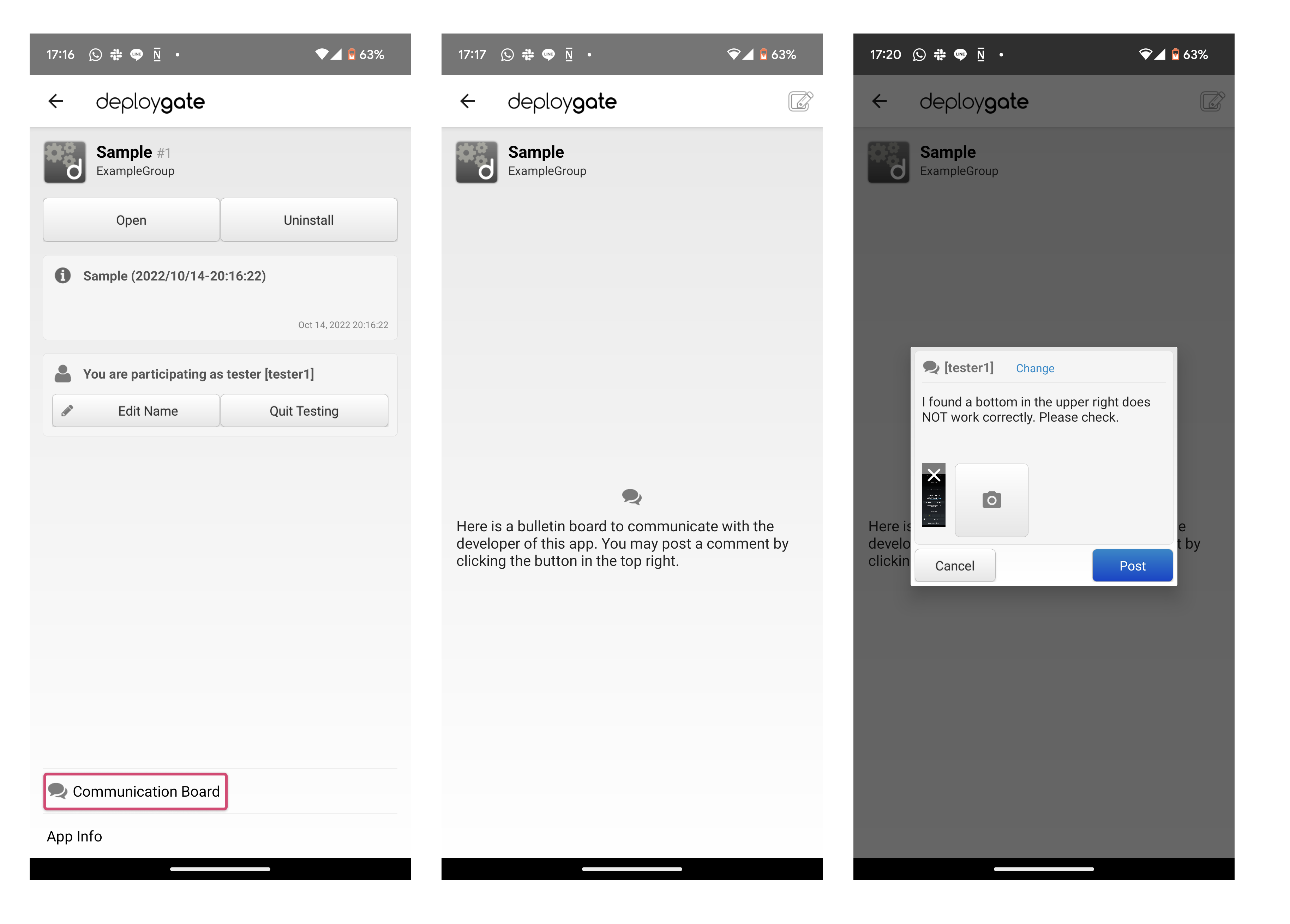
You can also view messages from the developer on the same screen.
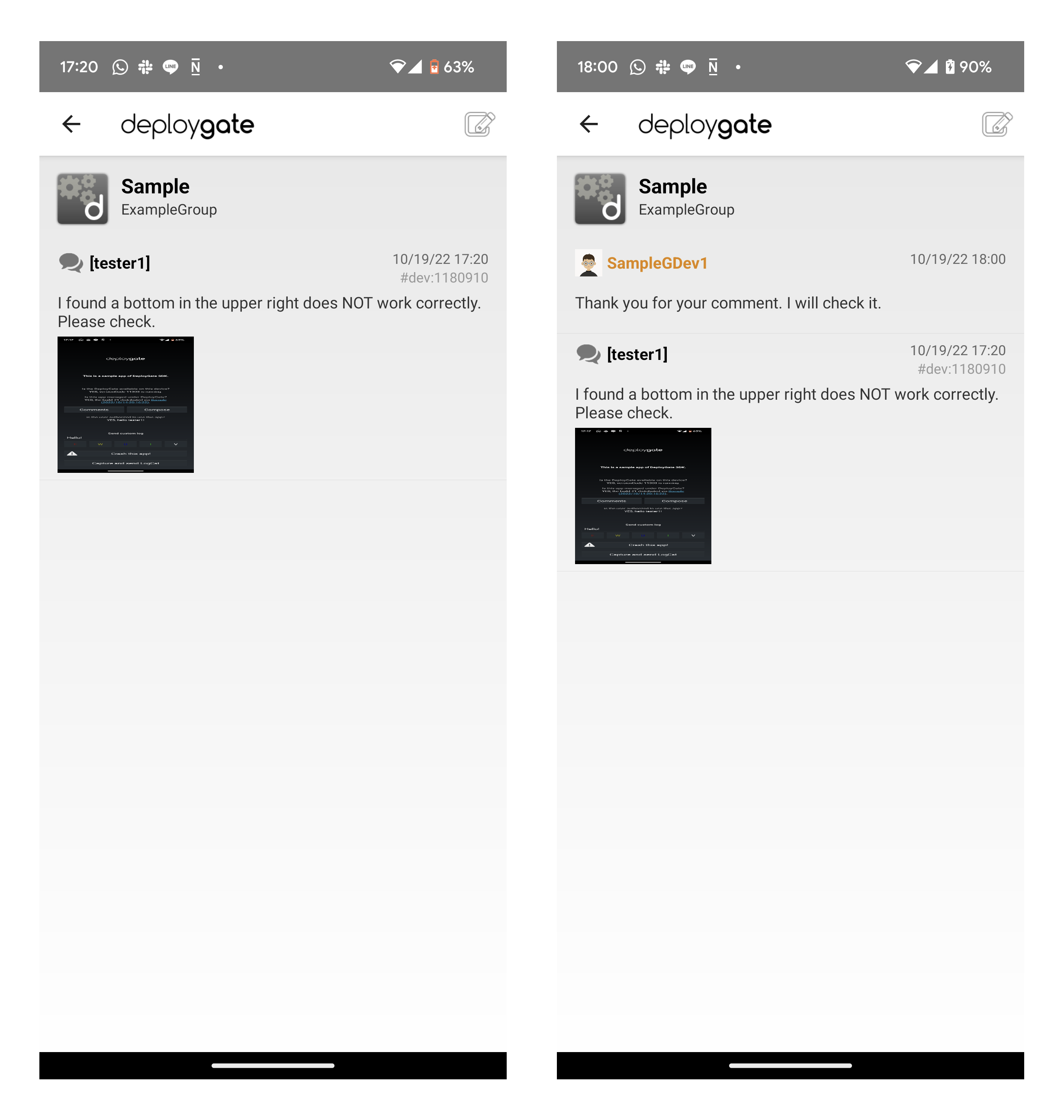
All posted comments can be viewed by everyone participating in testing through the same distribution page.
If you would like to change your display name, please refer to Changing Your Tester Display Name.
Changing Your Tester Display Name
A default tester name is assigned automatically. You can change it by following the steps below.
- Open the details screen of the distributed app and tap
Change. You can also change your name from the comment screen. - Enter your preferred name in the text box that appears, then tap
Save Tester Name.
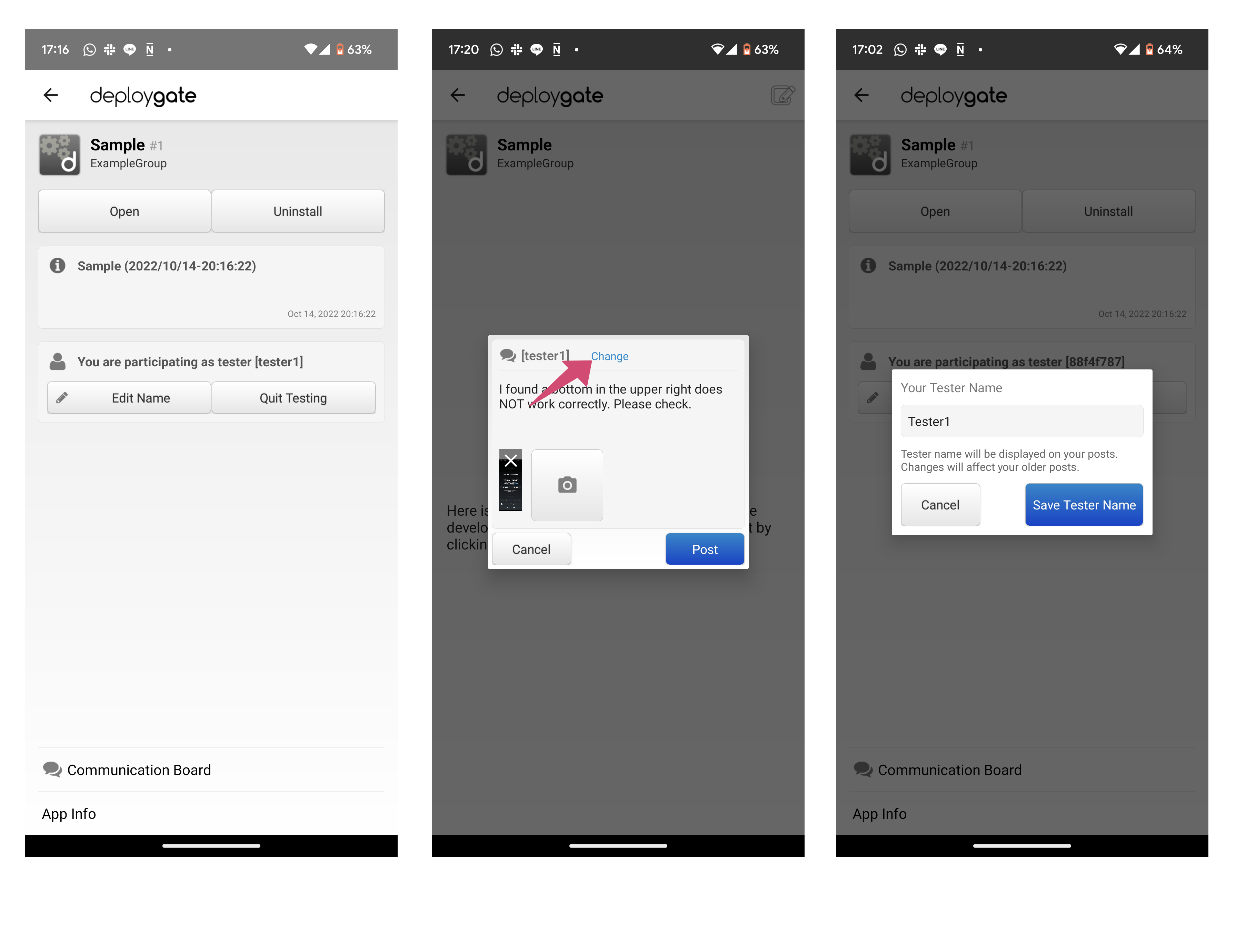
- 3–20 alphanumeric characters
- Allowed special characters: Underscore (_)
Changing your tester name will also update the name associated with all your previously posted comments.
- Confirm that your name has been updated on the app details screen.