Using Replay (Video)
This guide explains how to use the Replay (Video Recording) feature on an Android device.
Update the DeployGate Client App to the Latest Version
Please update the DeployGate client app to the latest version from the Google Play Store.
For instructions on how to install the client app, please refer to this page.
Using the Replay Feature in the DeployGate Client App
1. Install the Target App
Scan the QR code for the target revision and install the app.
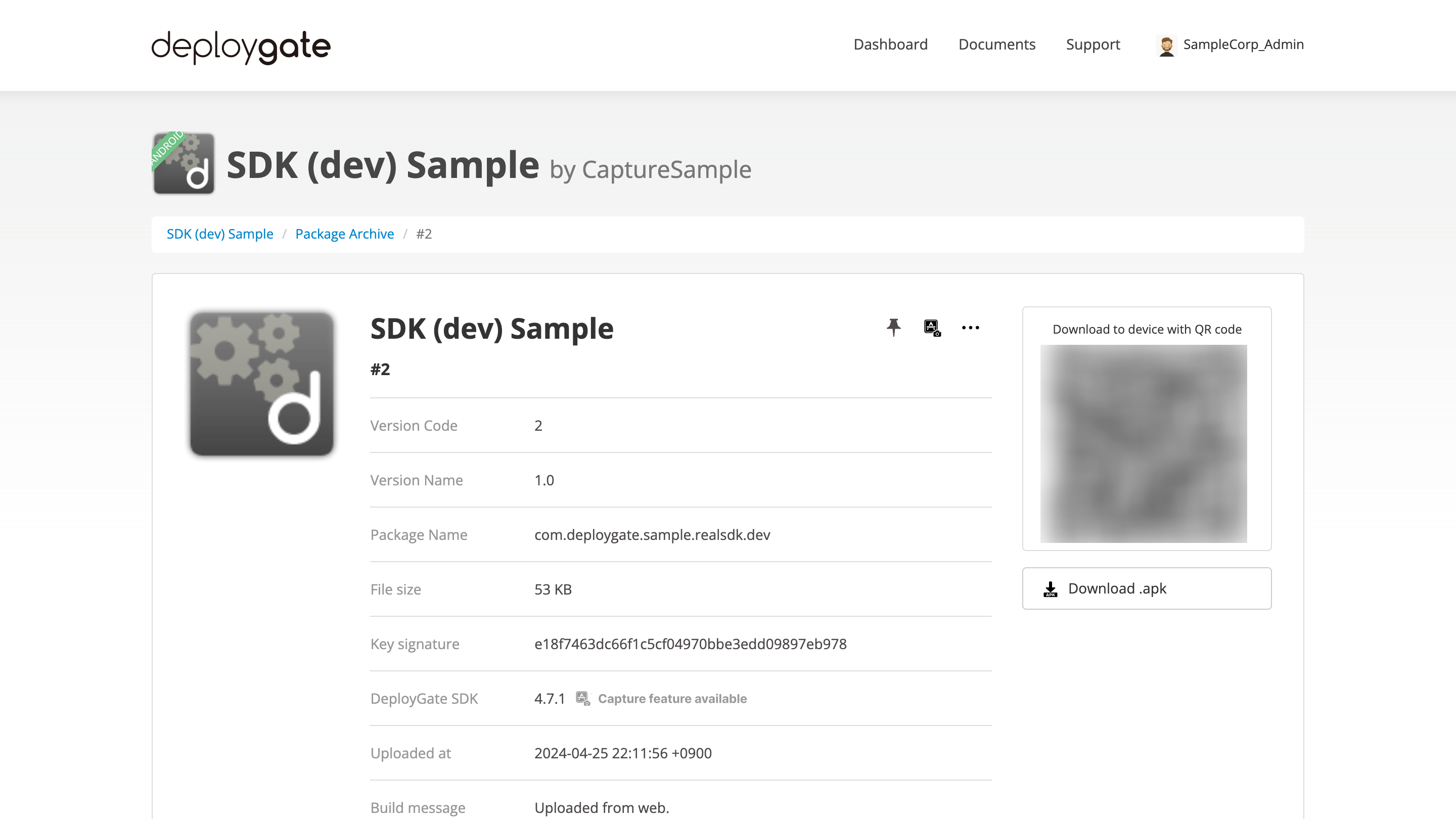
If you scan the QR code without being logged in to the DeployGate client app, the login screen will appear. Log in with your DeployGate user account and proceed with the installation.
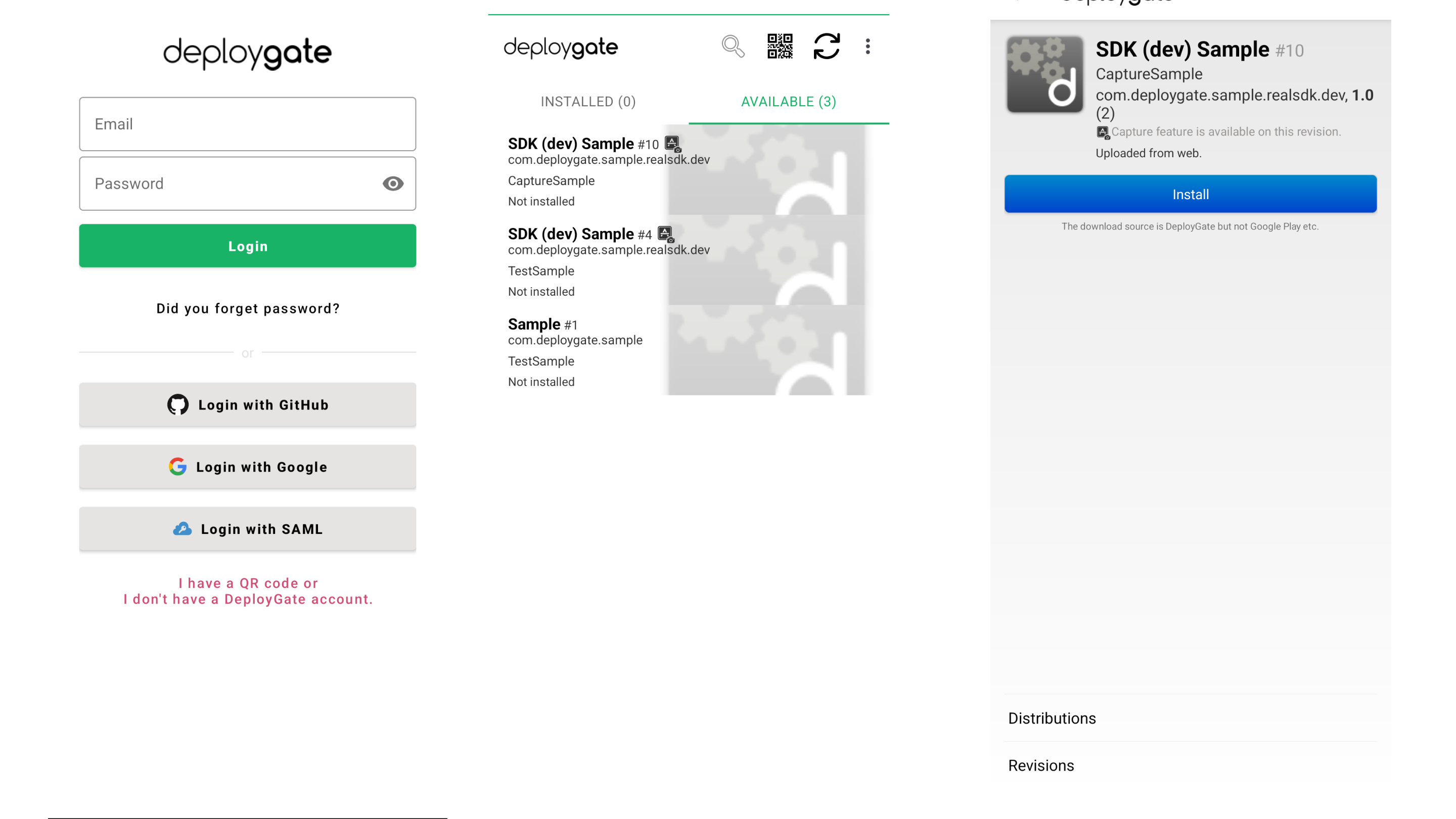
2. Enable the Replay Feature
-
After downloading the app you want to test, the
Start Replay Capturebutton will appear. Tap the button.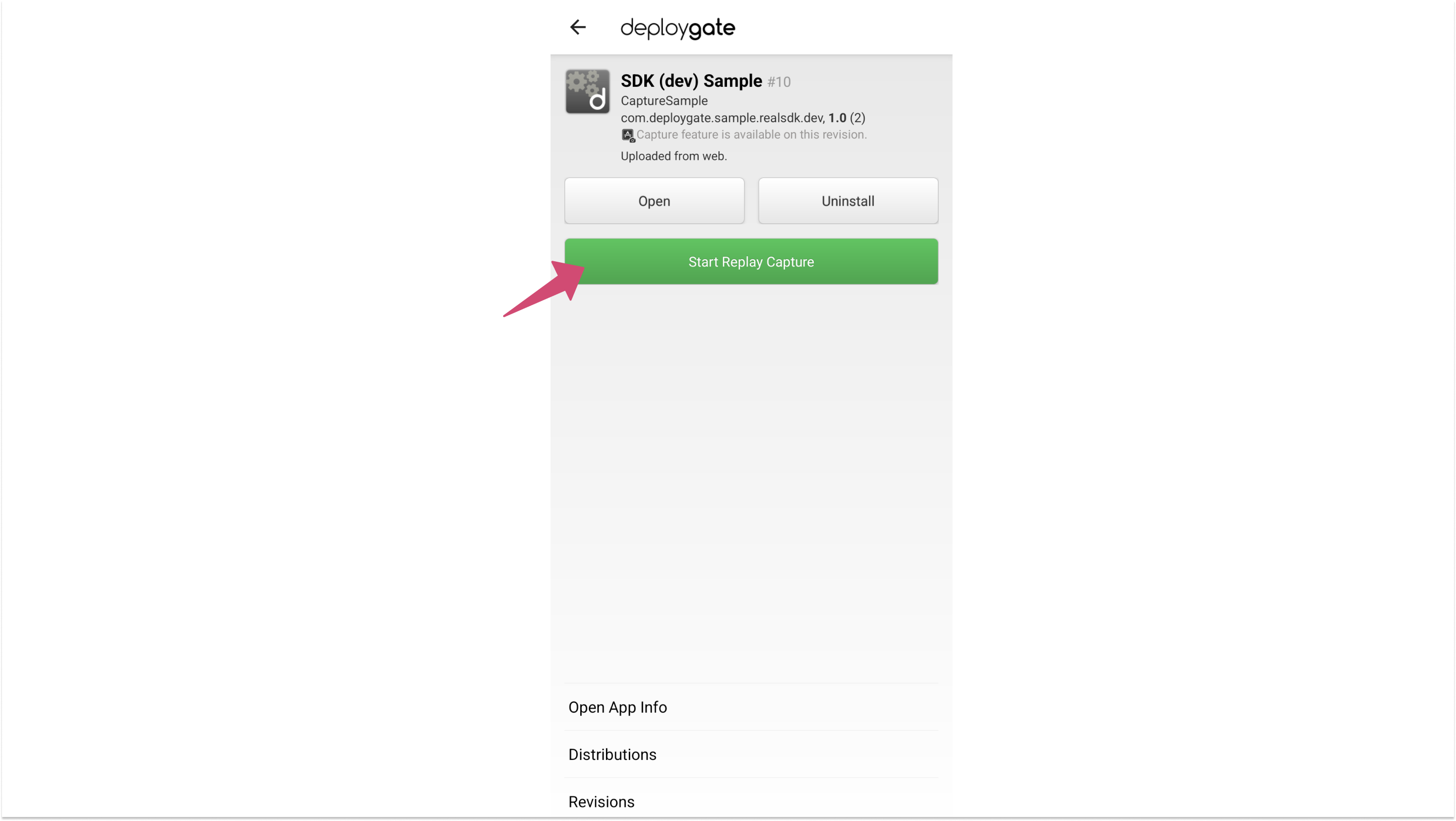
-
Tap
Allow Audio Recordingto grant permission.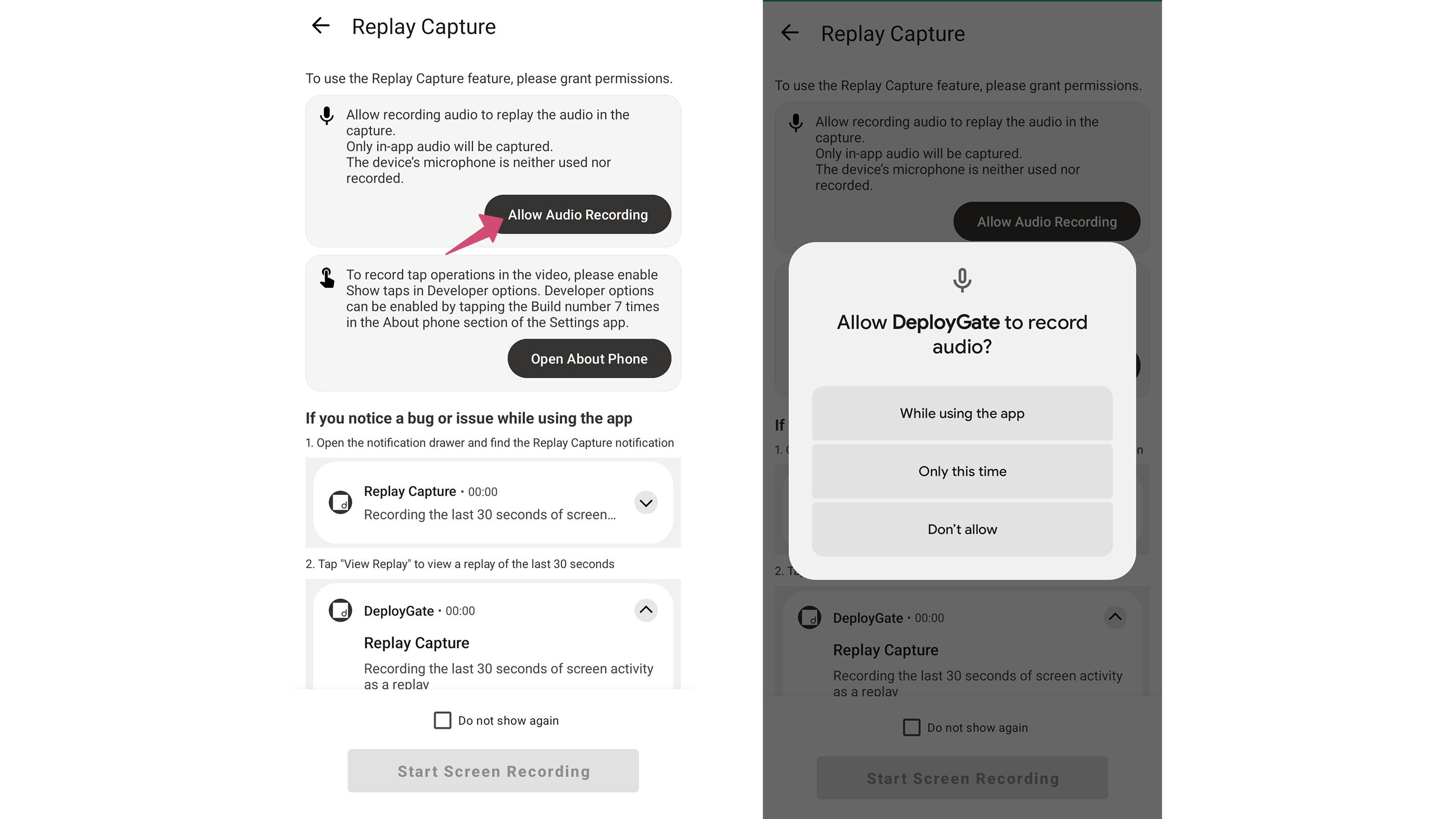
-
Tap
Open About Phone, then tapBuild Number7 times to enable Developer Options.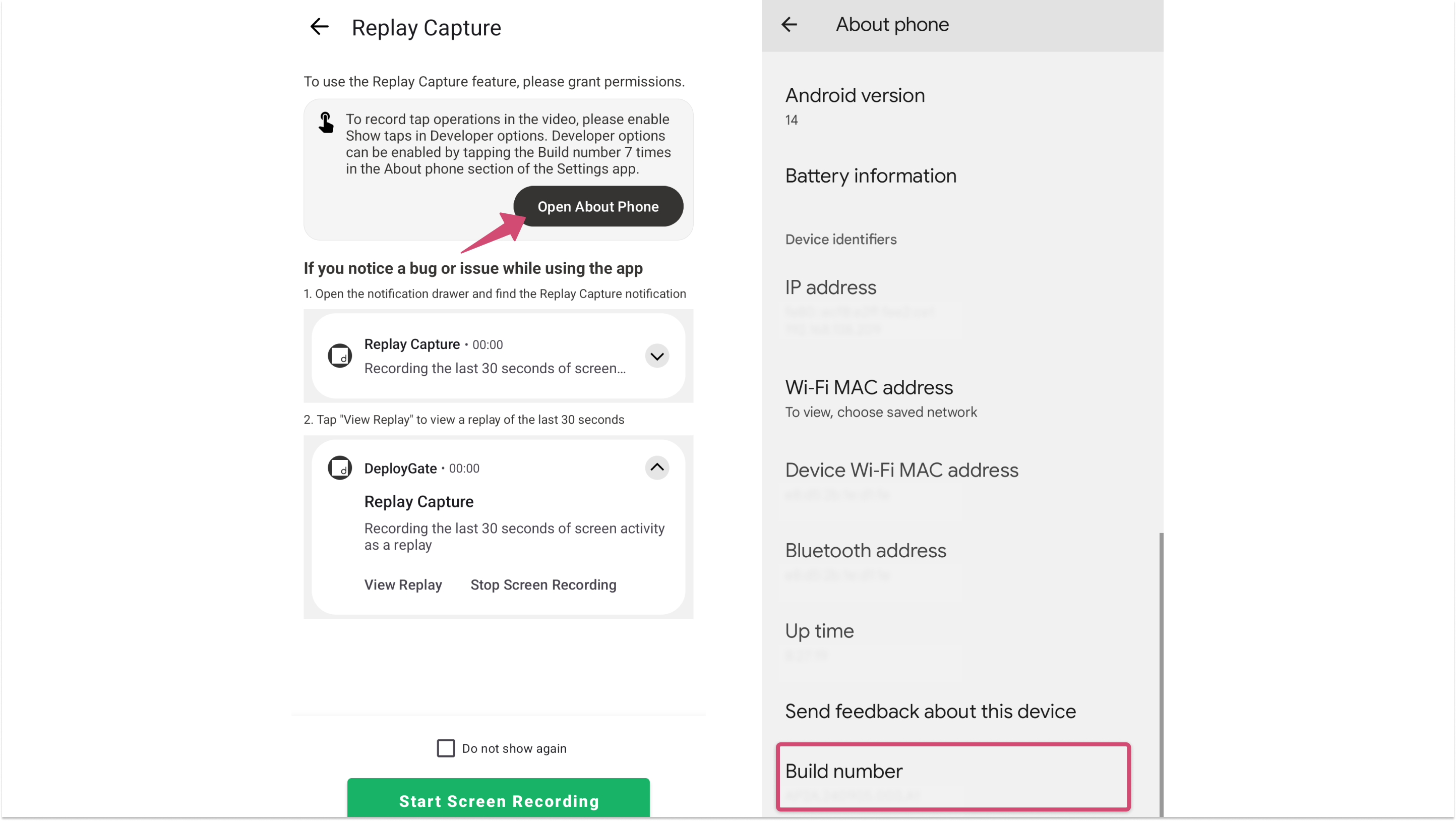
-
Tap
Open Developer Optionsand enableShow Taps.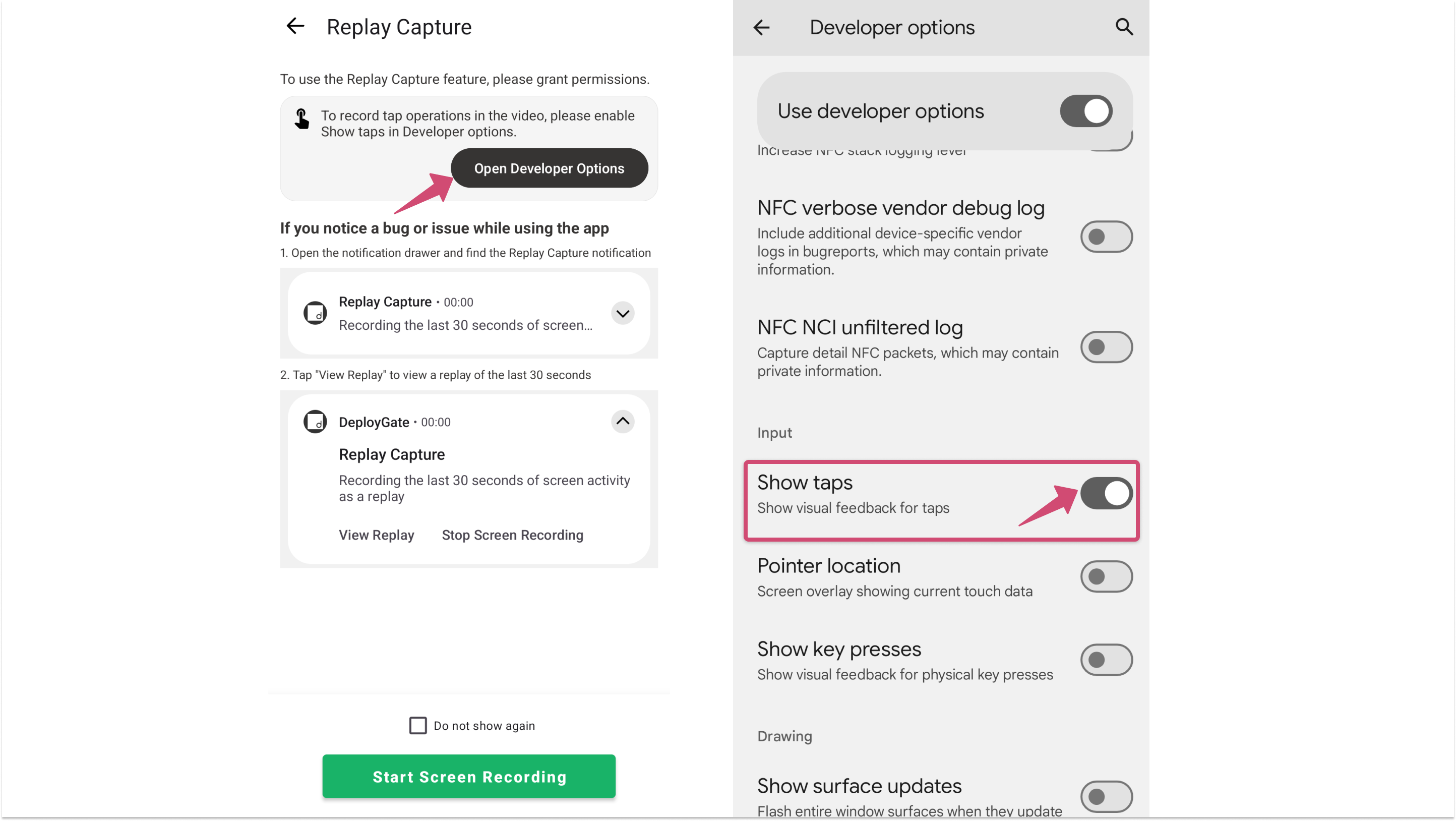
-
Once enabled, tap
Start Screen Recordingto return to the initial screen.
3. Start a Replay Capture
-
Tap
Start Replay Capture.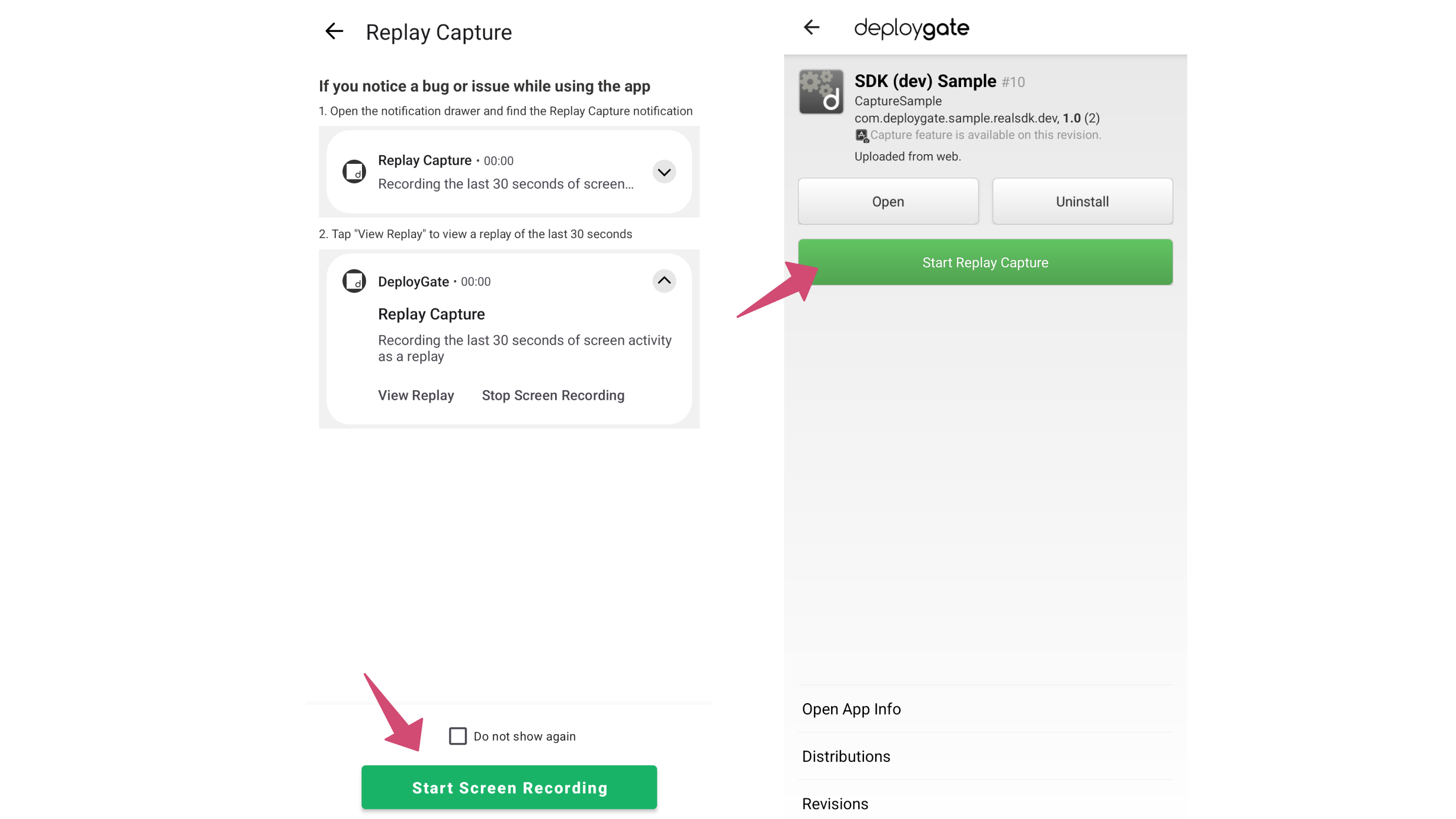
-
A pop-up asking
Start recording or casting with DeployGate?will appear. TapStart. -
Tap
Opento launch the app you want to test, then begin testing.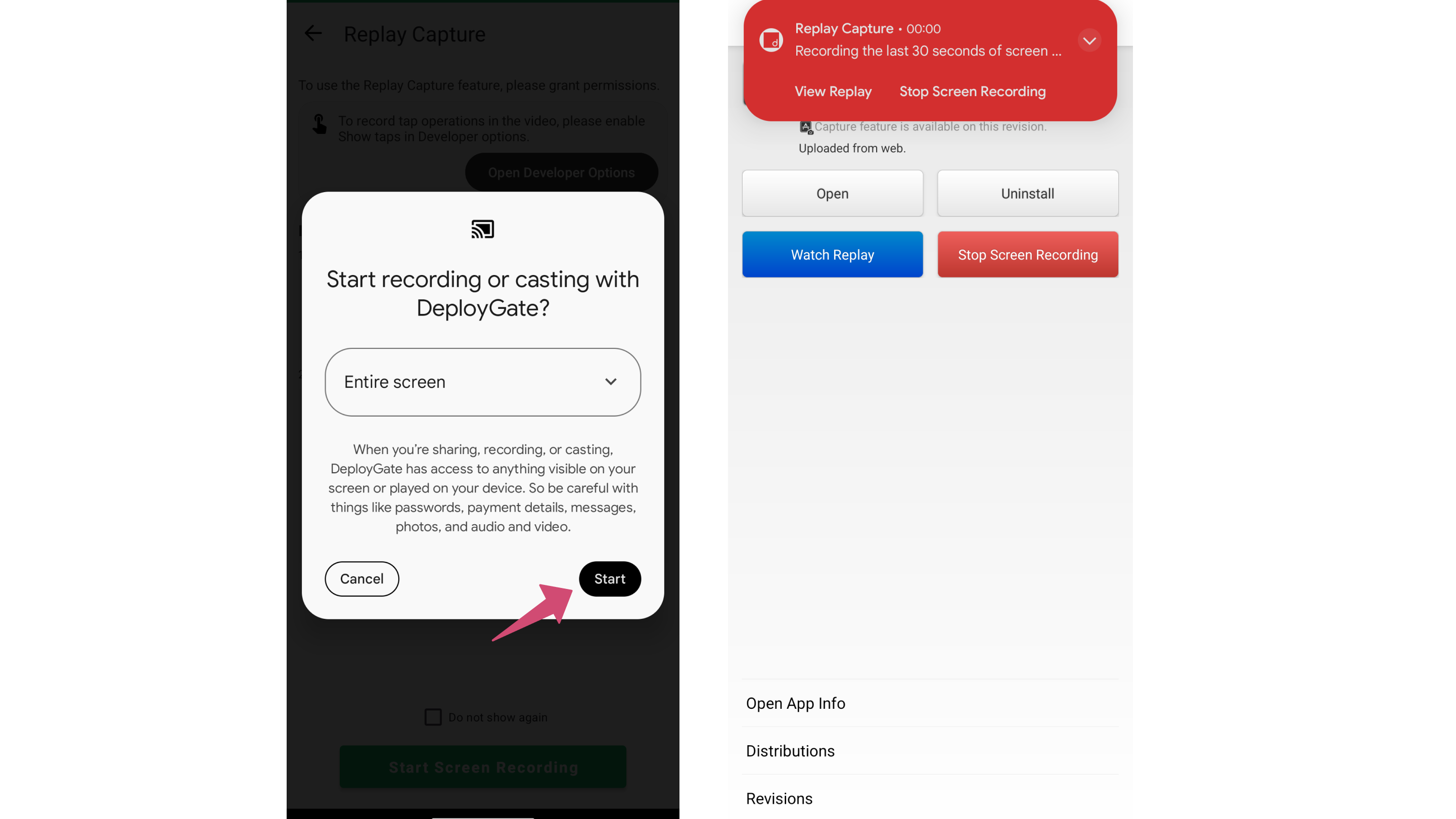
4. Review and Save Replay Capture after Stop Recording
To stop recording, return to the DeployGate client app or tap Stop Screen Recording from the notification bar. The recording is saved up to 30 seconds before the recording is stopped.
Tap Watch Replay in the DeployGate client app to review the recorded video. To save the replay, tap Save Capture.
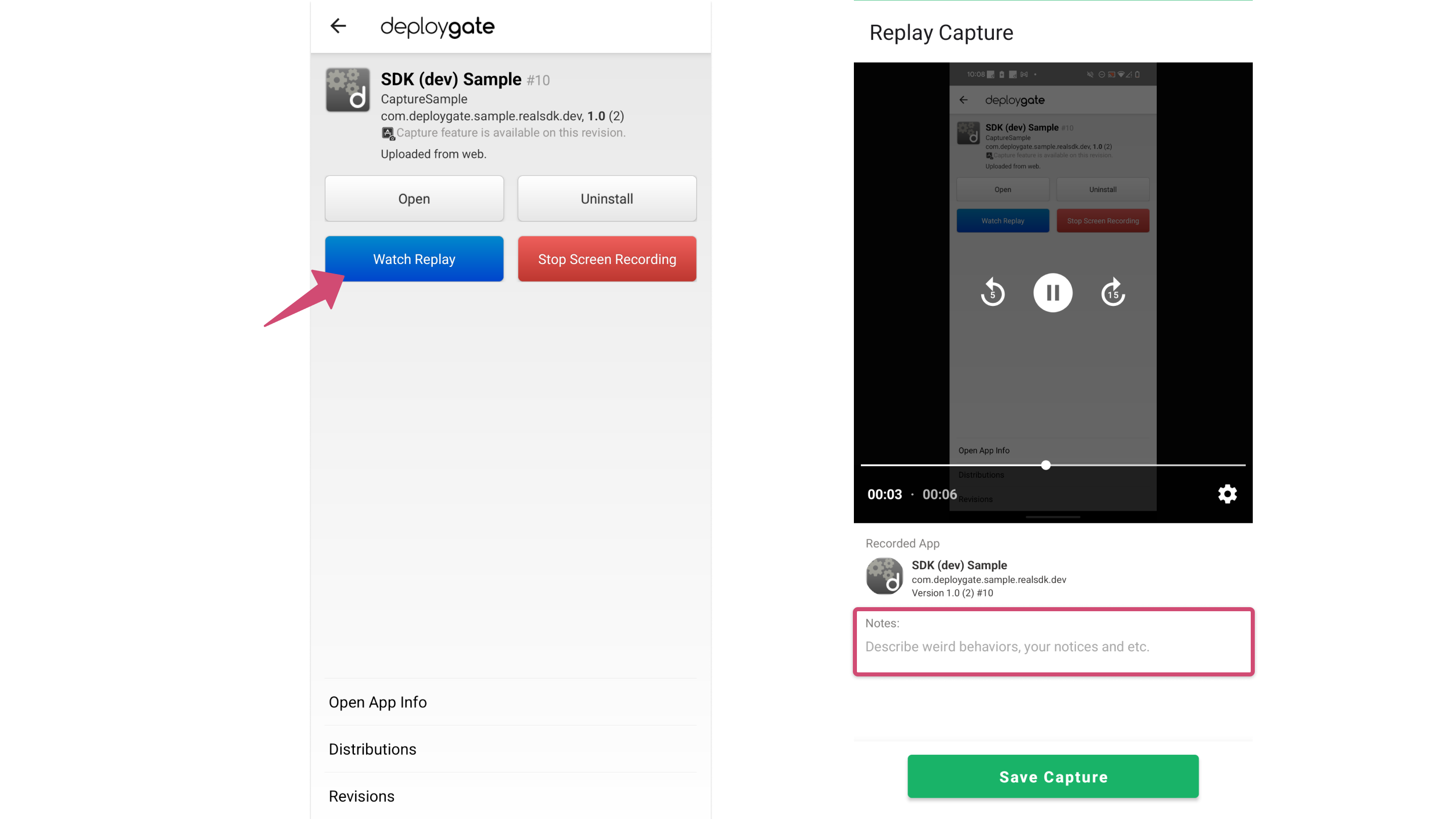
If you encounter a bug, stop the screen recording immediately. This allows you to review the actions leading up to the error.
This completes the instructions for using the Replay feature on an Android device.
Checking Saved Replays
For instructions on how to view saved replays, please refer to this page.