Install Distributed Apps on Android Devices
This guide explains how to install an app under development on an Android device.
Please refer to How to Install the Android Client App first. Once the client app is installed, proceed with the steps below.
Installing a Distributed App
When you launch the client app downloaded to your device, the following screen will appear.
To log in as a member and install an app under development, select Sign Up / Log In and log in using your account ID and password.
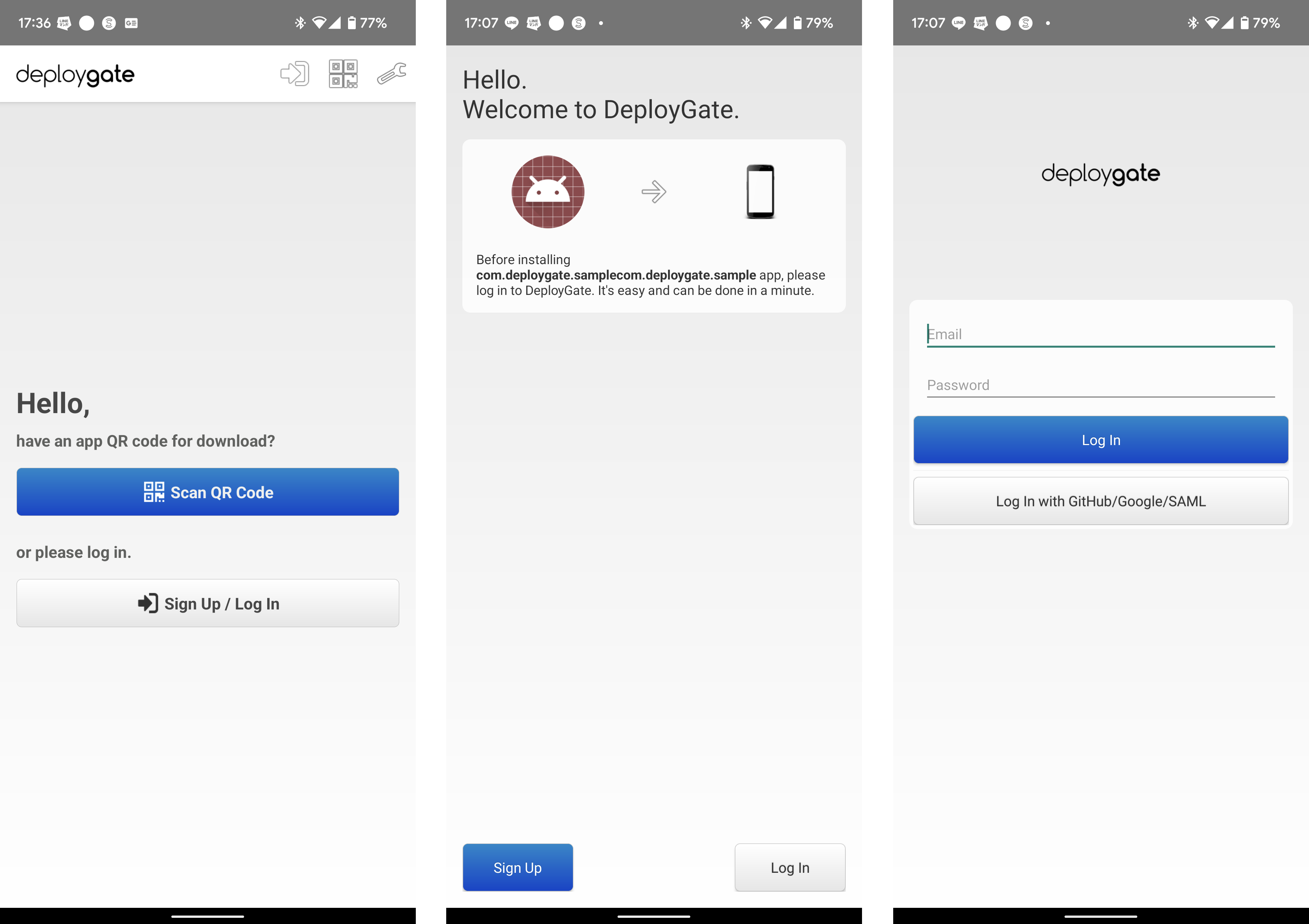
Account registration may not be required, depending on the distribution method. You do not need to create an account to install an app distributed via link distribution.
For details, please refer to the Comparison Table of Member Distribution and Link Distribution.
Installing an App Distributed via Link Distribution
Please install the DeployGate Android app first. Once it is installed, proceed with the steps below.
The app will be shared with you via a distribution page URL or QR code. If you receive an app through link distribution, you can access only the single revision specified by the developer from the distribution page.
If you are unsure whether the app was shared through link distribution, please check with the developer. For details on the differences between the two distribution methods, please refer to this page.
- Open the shared link on your device and tap
Install. You can also access the same page by scanning the QR code.
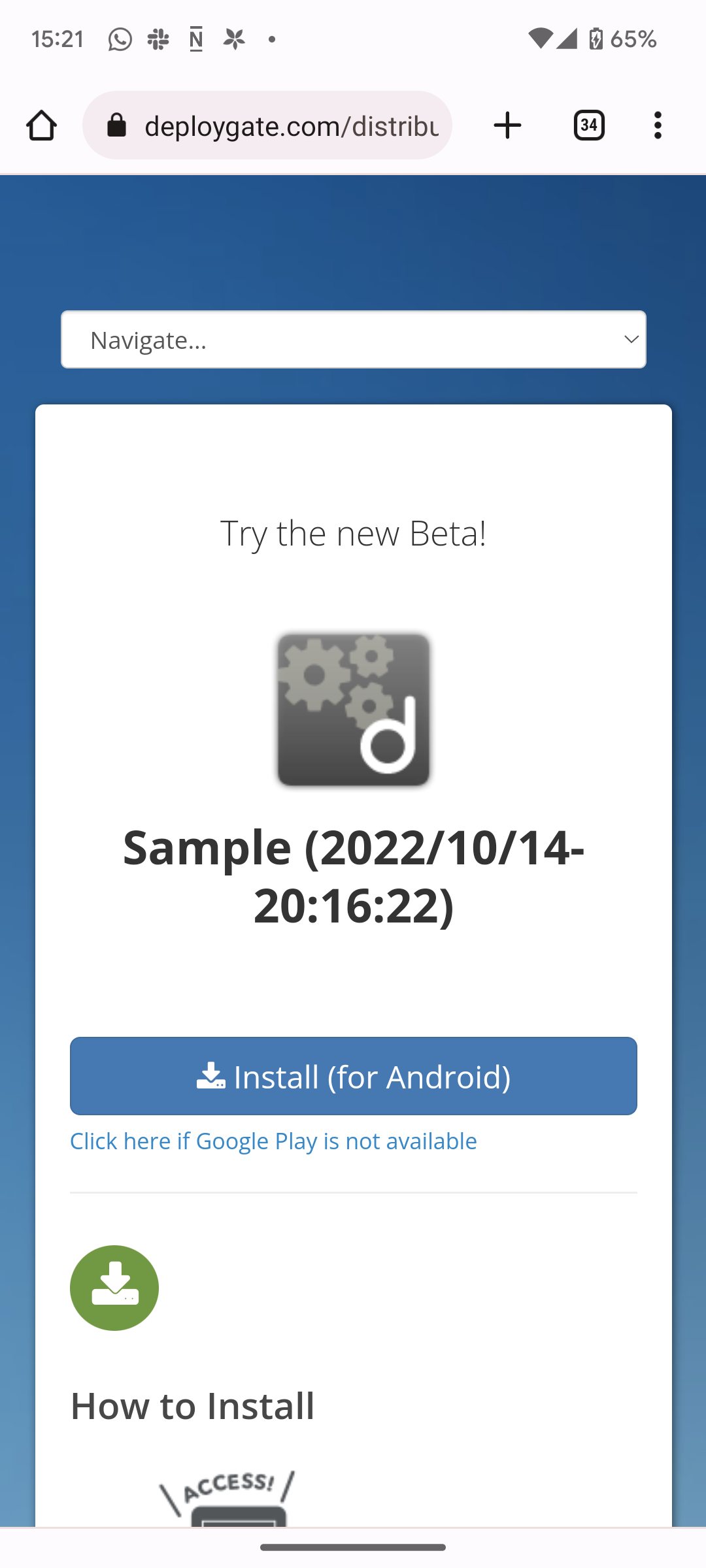
- The client app will launch and display the app being distributed. Tap
Install.
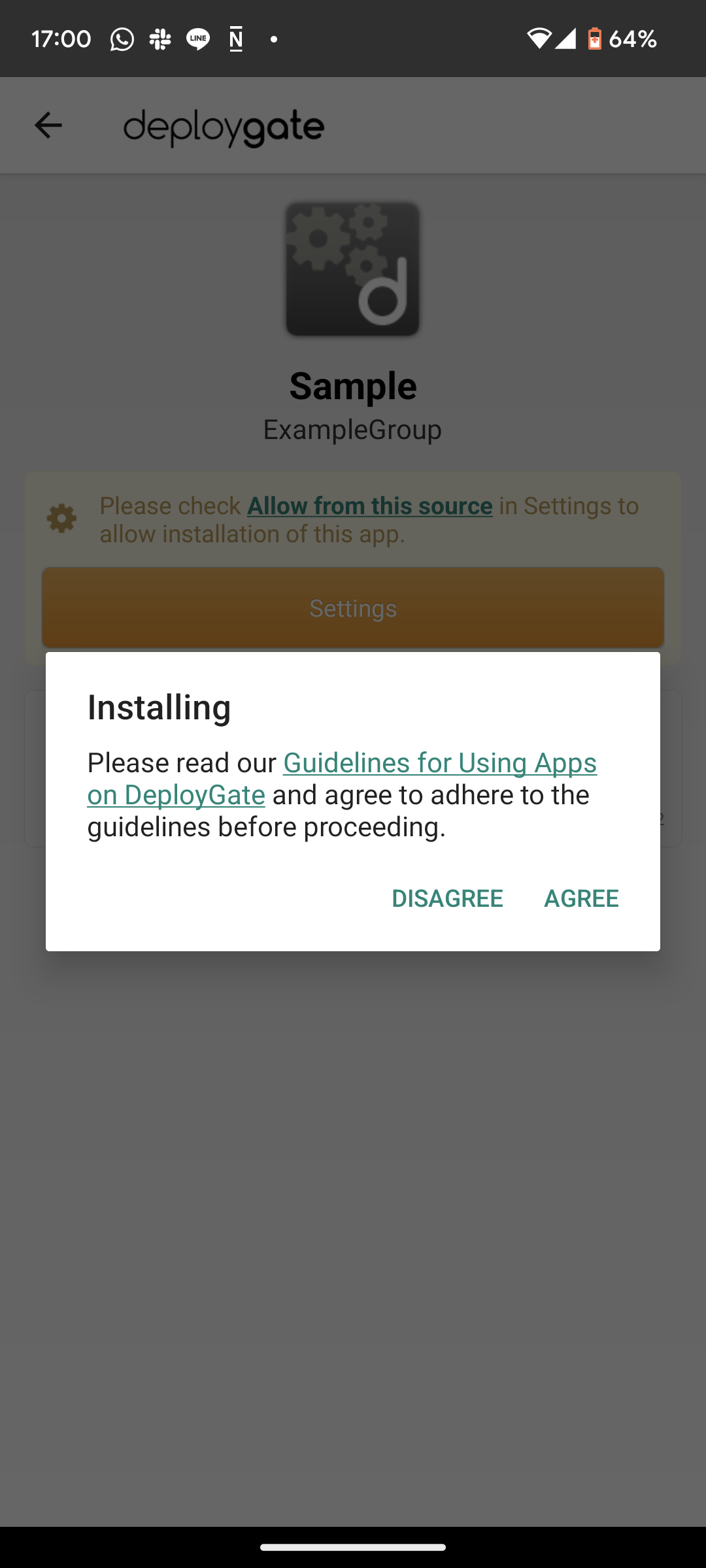
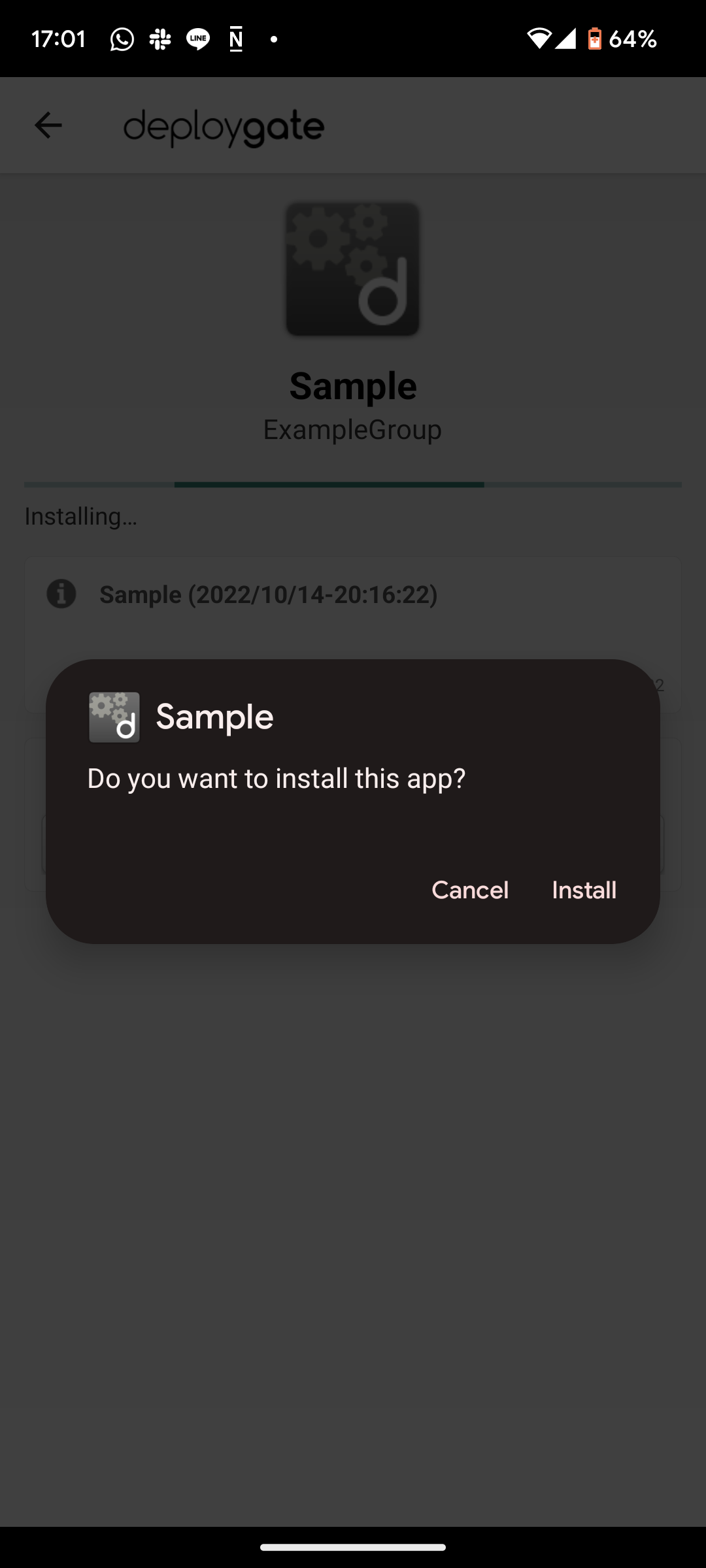
- Confirm that the app has been downloaded to your device.
Installing an App Distributed via Member Distribution
Please install the Android client app first. Once it is installed, proceed with the steps below.
You can view a list of apps under development that are available for installation in the client app. You can install any revision of an app you have been granted access to, allowing you to compare different revisions and isolate errors.
If you are unsure whether the app was shared through member distribution, please check with the developer. For details on the differences between the two distribution methods, please refer to this page.
- Tap the name of the app you want to install. The following screen will appear. Tap
Install.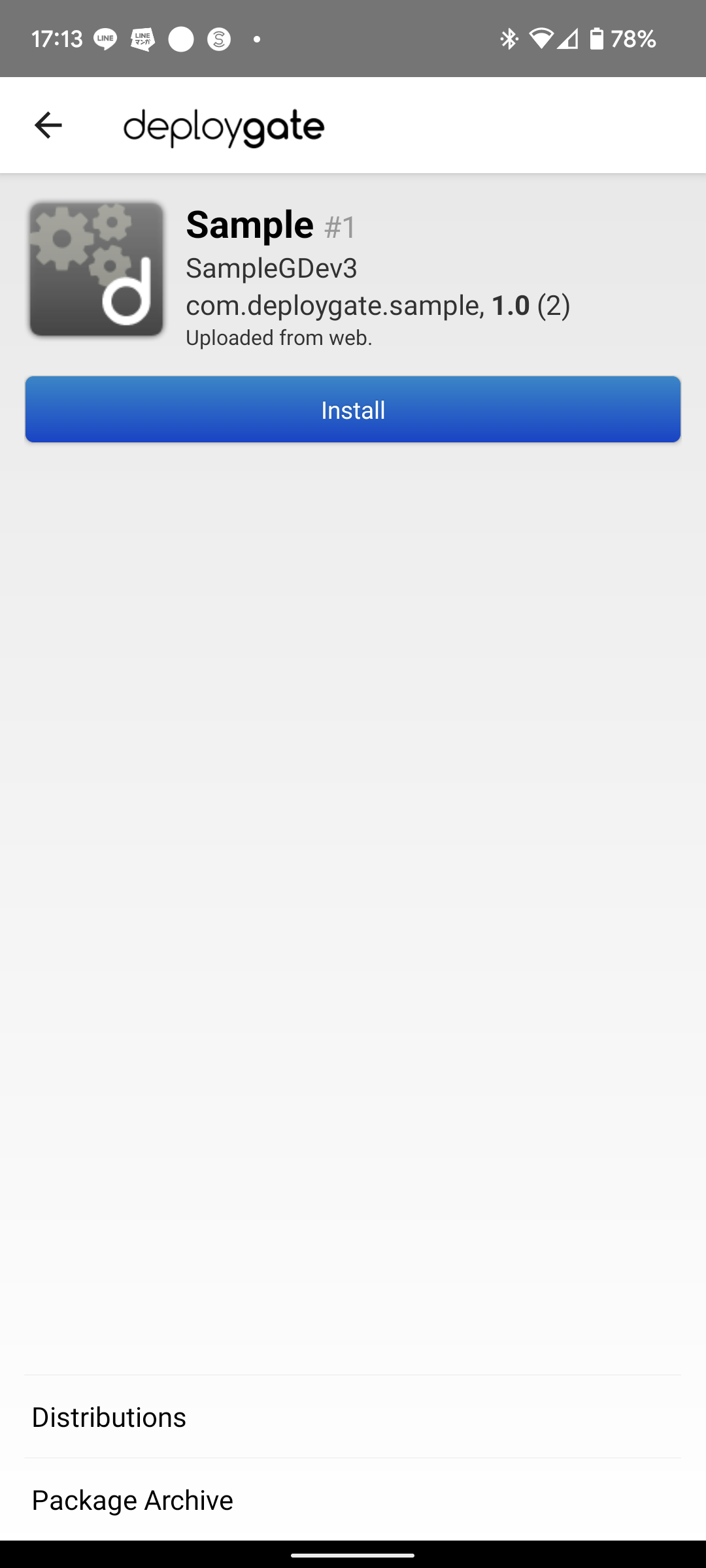
If you are prompted to allow app installation, follow the on-screen instructions to grant the necessary permission.
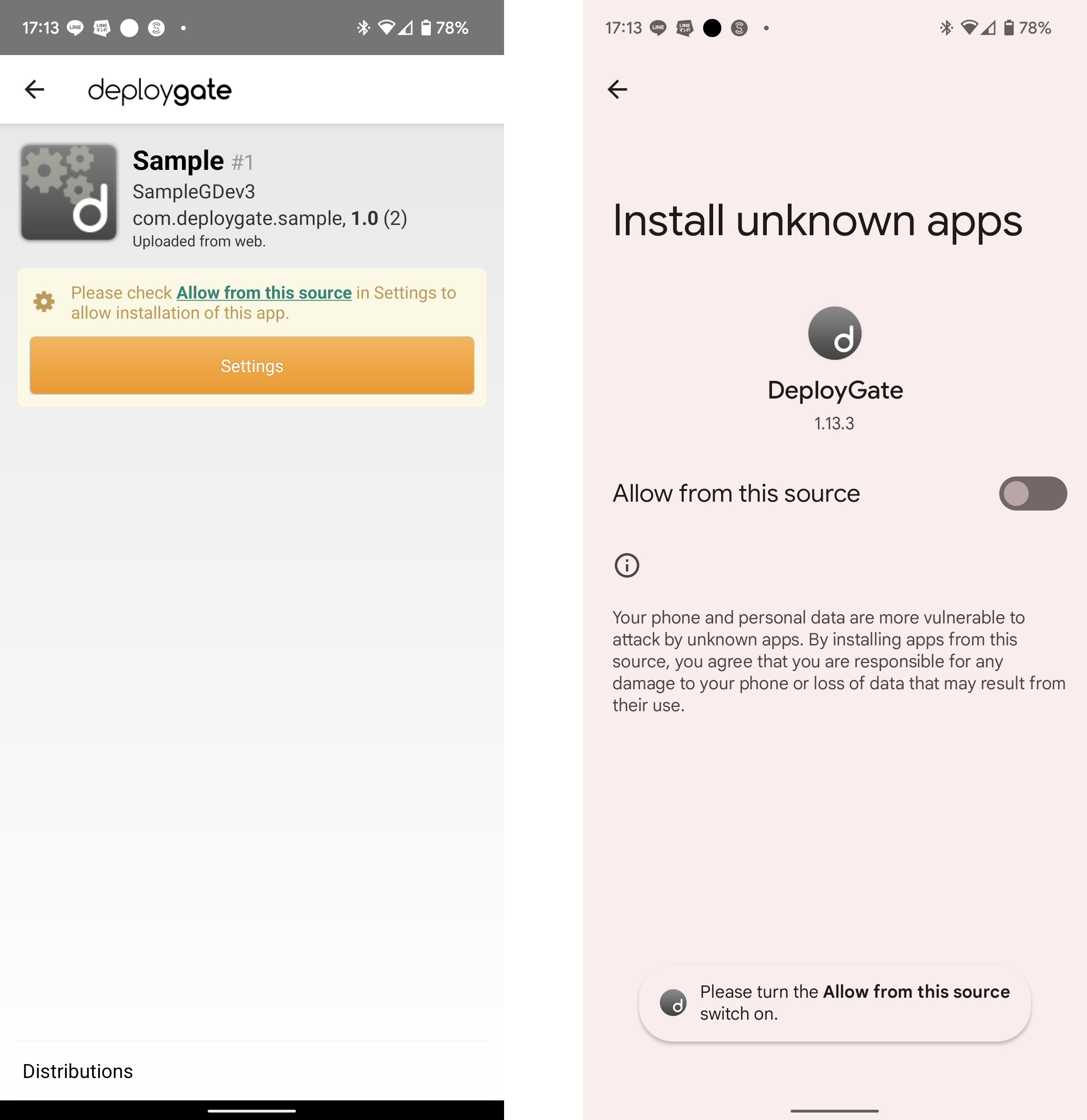
- Confirm that the app has been downloaded to your device.
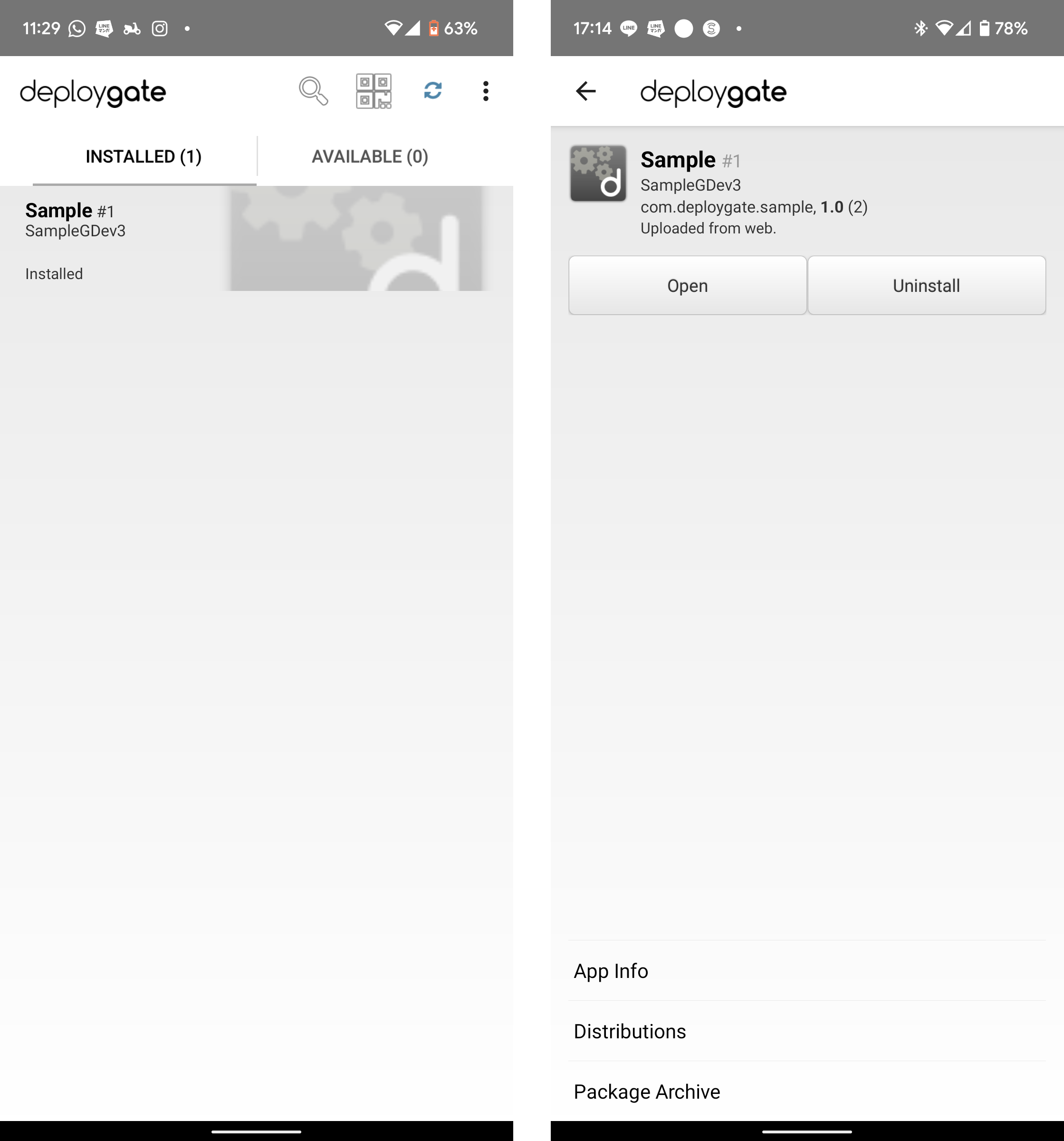
- The home screen displays a list of installed apps and apps distributed to your account.
- Tap an installed app to view its details. You can check the app name and revision, or uninstall the app from this screen.